
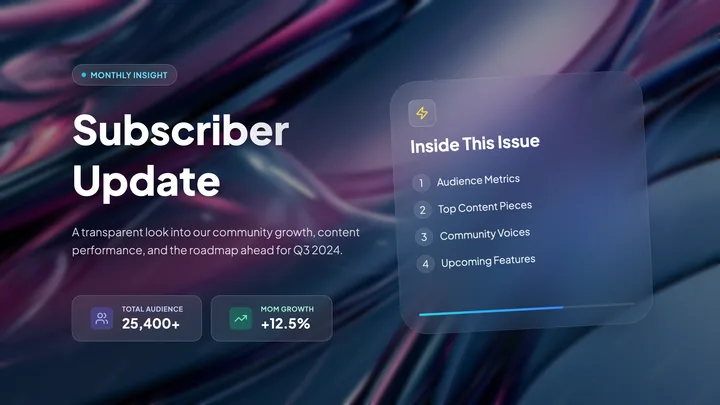
Subscriber Update
Marketing · 5 slides · 16:9
Describe your topic or add your notes, and get a deck you can edit.

Type a topic, or add a PDF, images or a link.

Answer a few quick questions and Cue Slides drafts the deck.

Change any slide, then share a link or download it.
Describe your topic, audience and key points, or try an example in the prompt box. No design experience is needed to start. Cue Slides drafts a pitch deck, product launch deck, team update or lesson for you to review and edit.
Yes. Create and edit in your browser. You can browse templates without signing in; sign in to upload materials, generate a presentation and manage your saved work. The Cue desktop app is optional.
Add your notes, attach a PDF or text file, upload PNG, JPEG or WebP images, or paste a web link. Include the sections you want covered. If a page needs a login or cannot be read, provide the relevant text instead.
Browse the template library, preview a design, then choose Use template and describe your content. The result follows the template’s style and structure; it is not an exact copy. Preview only designs cannot currently be used for generation.
Supported page sizes are widescreen 16:9, A4 portrait and square (1:1). State the size and page count in your prompt, such as “Create a single-page A4 portrait resume.” Use a template with a matching size.
Yes. Open Edit to change text and images, regenerate a page, or ask for changes in the chat. Specify the page and what to keep when requesting a small change. Wait for saving to finish before leaving.
Web research is optional. Turn it on to allow web research during generation, or off to work from the materials you provide.
Open Download for PDF, PNG, HTML and PowerPoint options. PDF keeps pages as shown; PNG combines them into one tall image. Make changes in Edit and download again. PowerPoint is in beta and may fail: charts and graphics export as images, and layouts may differ. PowerPoint (Images) uses whole-page pictures. HTML viewers may need an internet connection for images or fonts.
Cue subscriptions are not yet connected to Slides. Sign in to check the plan and creation credits available to your Slides account, or see Pricing for current Slides options.
For long source material, attach a PDF or text file and keep the prompt focused on the result you want. The upload form checks file sizes and formats; follow the limit shown if a file is rejected. If the app reports that notes are too long, move them to an attachment.
Generation time varies with the page count, source material and web research. Follow the progress in your saved presentation. If a step fails or appears stuck, check its latest status and any retry message before starting again; repeating the request can create another presentation. Use Feedback to report the problem with the presentation’s link.
Review facts, figures, sources, page count, text fit and the final exported file. Replace sample template content and verify image permissions. Use only material you are allowed to upload, and read the Privacy Policy for how data is handled.
Marketing · 5 slides · 16:9

Business · 7 slides · 16:9

Business · 8 slides · 16:9

Business · 5 slides · 16:9

Proposal · 6 slides · 16:9

Portfolio · 5 slides · 16:9

Medical · 5 slides · 16:9

Brand · 8 slides · 16:9